


Turn on debugging and read the logs
When phpVMS shows an error or a blank page, the logs usually tell you why.
Find your phpVMS folder
Go to Services, open your hosting plan, and on the Management tab click File Manager. Double-click a folder to open it.
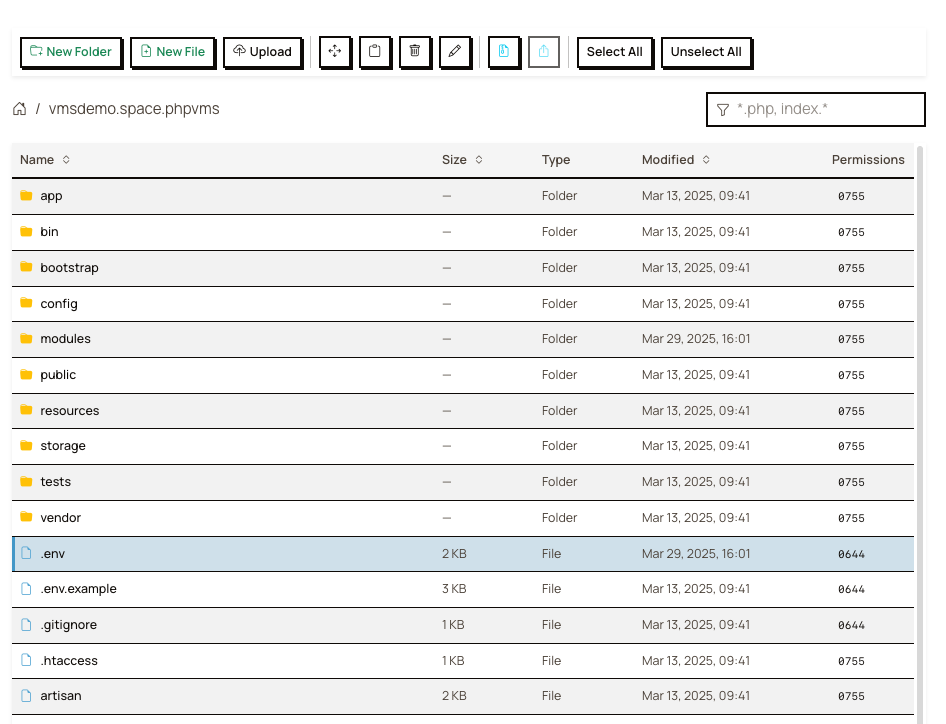
Open the folder that holds phpVMS. This is the folder with app, config, storage and the .env file in it. If you used the automated installer, its name ends in .phpvms:
Read the phpVMS logs
In your phpVMS folder, open storage, then logs. phpVMS writes a new log file every day, named with the date, for example laravel-2026-10-23.log. The cron- files are from the cron job.
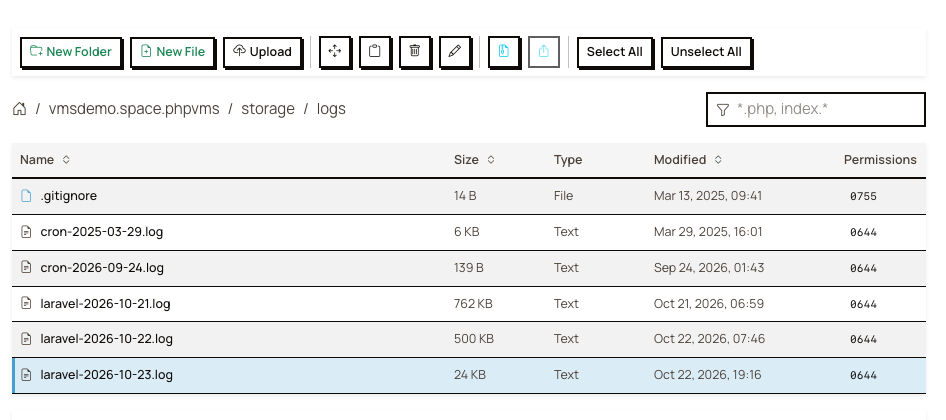
Double-click the newest laravel- file to open it, and scroll to the end. The newest errors are at the bottom.
PHP and web server errors
Some errors happen before phpVMS can log them. Open cPanel with Open Control Panel and go to Errors to see the latest errors from the web server.
Turn on debug mode
- In your phpVMS folder, double-click the
.envfile. It opens in the editor. - Change
APP_DEBUG=falsetoAPP_DEBUG=true. - To also show the Laravel debug toolbar, change
DEBUG_TOOLBAR=falsetoDEBUG_TOOLBAR=true. - Click Save Changes and load the page again. phpVMS now shows the full error.
Turn debug mode off when you're done. Debug mode shows details about your site to everyone who visits it.
Asking for help
When you open a ticket or ask on the phpVMS forums or Discord, include:
- Your phpVMS version. It's at the bottom left of the phpVMS admin panel.
- Your PHP version
- The page where the error happens, and the steps to make it happen
- The error lines from the log
Before you share a log, check that it doesn't contain passwords or other private data.
Thanks for your feedback!