


Install phpVMS manually, step by step
This guide installs phpVMS 7 on your vmshost hosting by hand, on a subdomain such as crew.yourva.com. You do every step in the client area. You don't need to open cPanel.
If you'd rather not do it by hand, the automated installer does all of this for you. See Install phpVMS with the installer.
Before you start
- phpVMS 7 needs PHP 8.1 or later. See Change your PHP version and settings.
- Go to Services, open your hosting plan, and select the Management tab. Every tool in this guide is there.
1. Download phpVMS
Go to the phpVMS releases page. Under Assets for the latest release, download the .zip file, for example phpvms-7.0.10.zip.
Don't download "Source code". It doesn't include the vendor folder, and phpVMS won't run without it.
2. Put the files in a folder
- On the Management tab, click File Manager. It opens in your home folder.
- Click New Folder and name it after your subdomain, for example
crew.yourva.com. Create it here in the home folder, next topublic_html, not inside it. - Open the new folder and click Upload. Upload the phpVMS
.zipfile. - Select the
.zipfile and click Extract, the last button in the toolbar. The toolbar buttons only work when a file is selected.
- When the files are extracted, delete the
.zipfile.
The folder now contains app, config, public, storage and the other phpVMS folders:
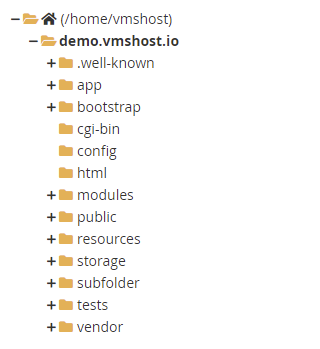
You can also upload the files with SFTP. See Uploading files: File Manager and FTP.
3. Create the subdomain
- On the Management tab, click Subdomains, then Create Subdomain.
- Type the subdomain (for example
crew) and select your domain. - In Document Root, type the folder from step 2 followed by
/public, for examplecrew.yourva.com/public. - Click Create Subdomain.
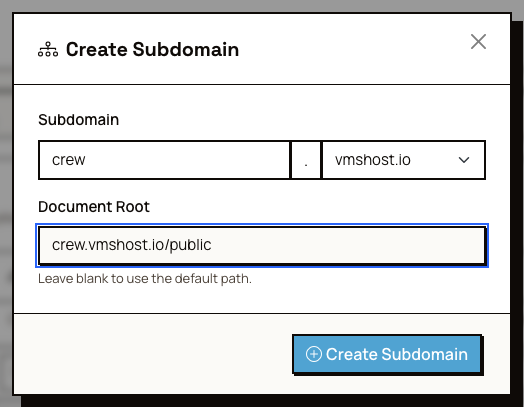
Don't leave Document Root blank. A blank document root points the subdomain at a folder inside public_html, and phpVMS won't load. The document root must be the public folder. Only that folder should be reachable from the web, so your .env file and the rest of phpVMS stay private.
If your domain uses our nameservers, the subdomain works right away. If your DNS is somewhere else, add an A record for the subdomain that points to your server's IP address, shown on the Overview tab.
4. Create the database
- On the Management tab, click Manage Databases, then Create Database.
- Type a database name and a username, for example
phpvmsfor both. - Type a strong password, or click the key button to make one. Write the password down.
- Leave Privileges set to All Privileges and click Create Database.
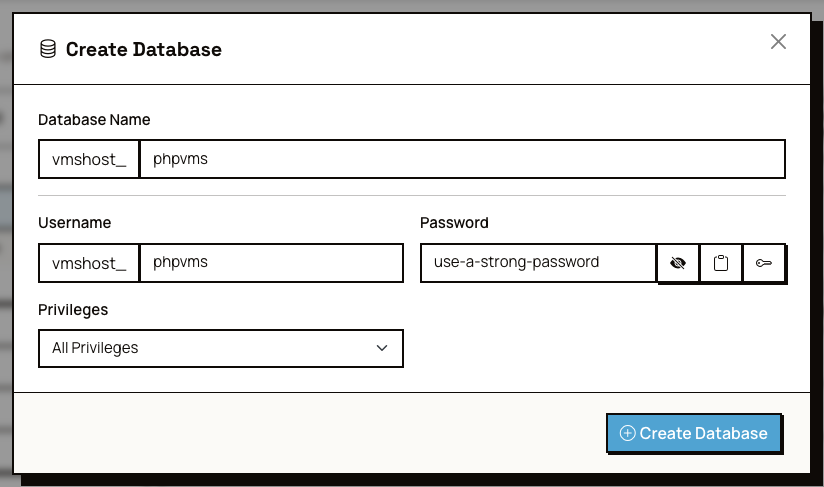
Your account name is added to the front of the database name and the username, for example youruser_phpvms. You need the full names in the next step.
5. Run the installer
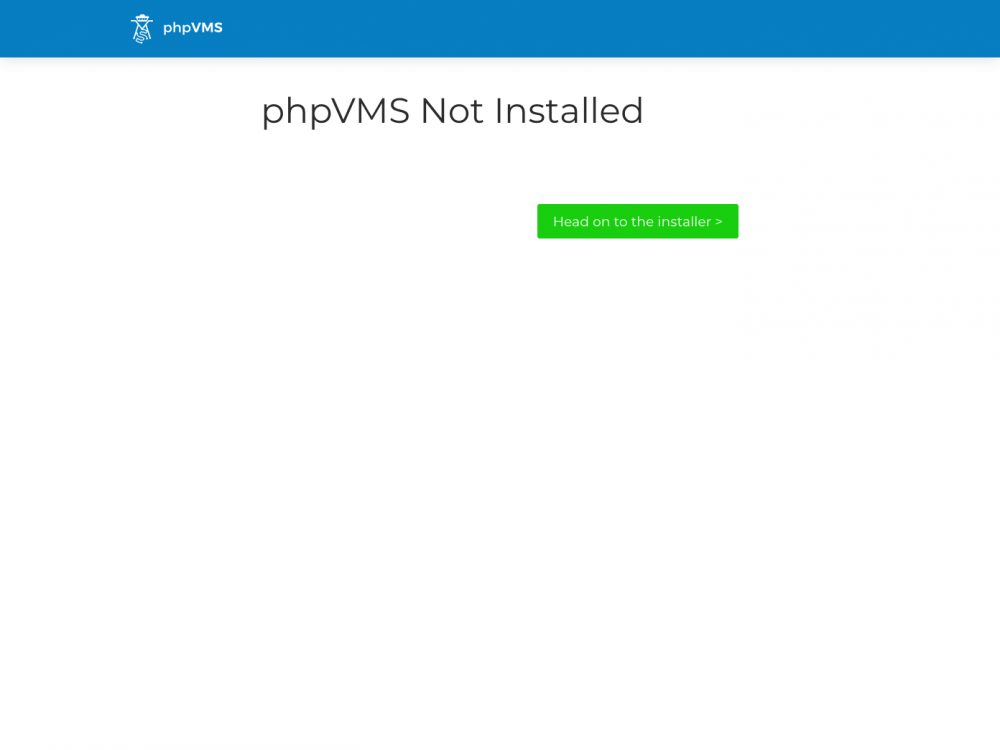
- Go to your subdomain in a browser. You see "phpVMS Not Installed". Click the button to open the installer.
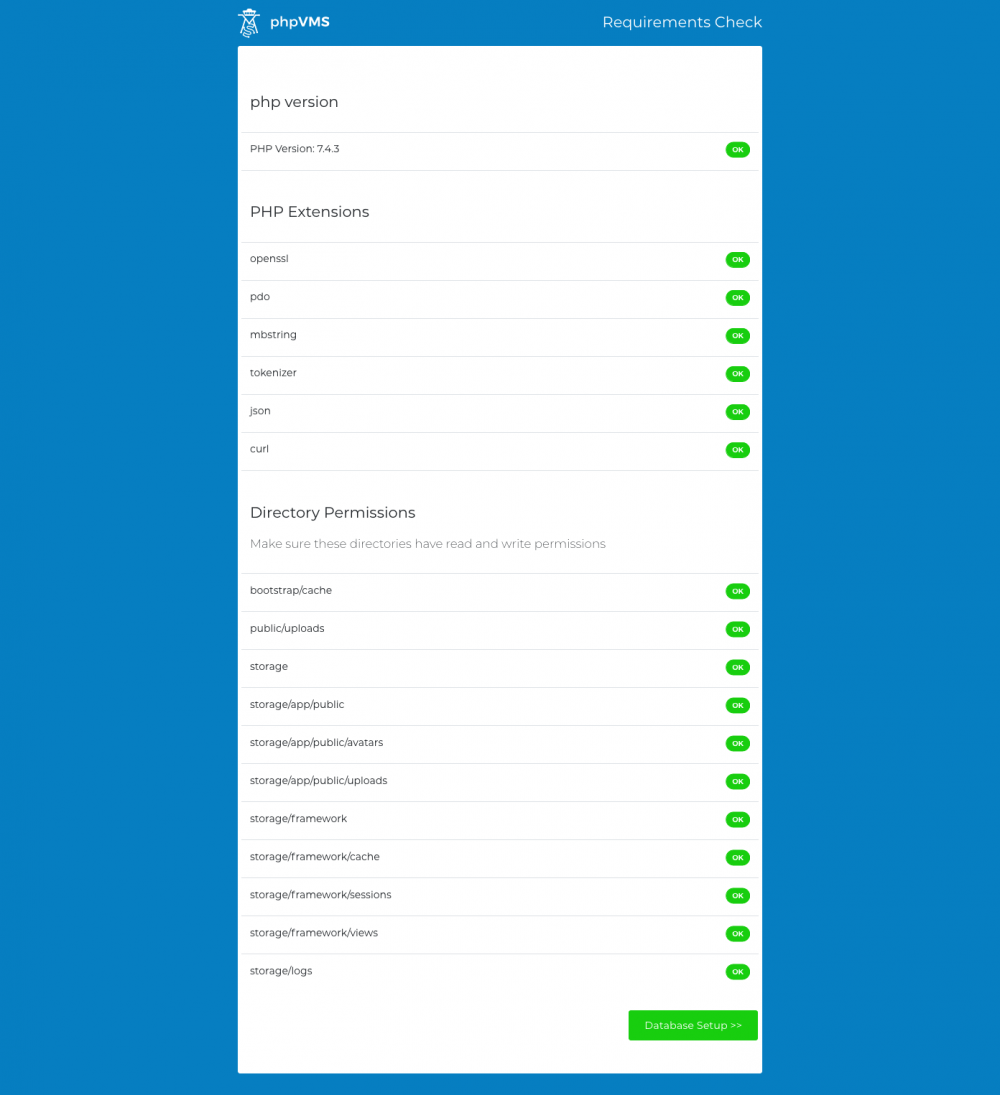
- The installer checks the PHP version, PHP extensions and folder permissions. All of them must pass before you can continue.
- On the database page, select MySQL and enter your site name and URL. Enter the full database name, username and password from step 4. The database host is
localhost. Click Test Database Credentials, then Setup Database.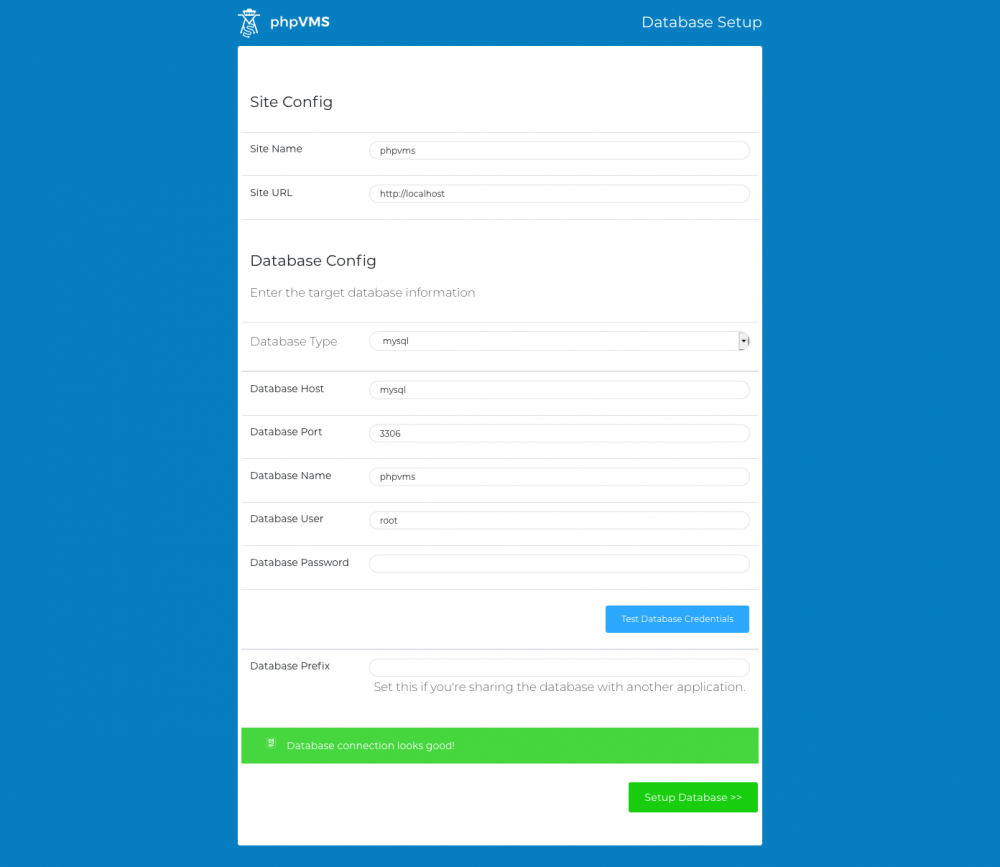
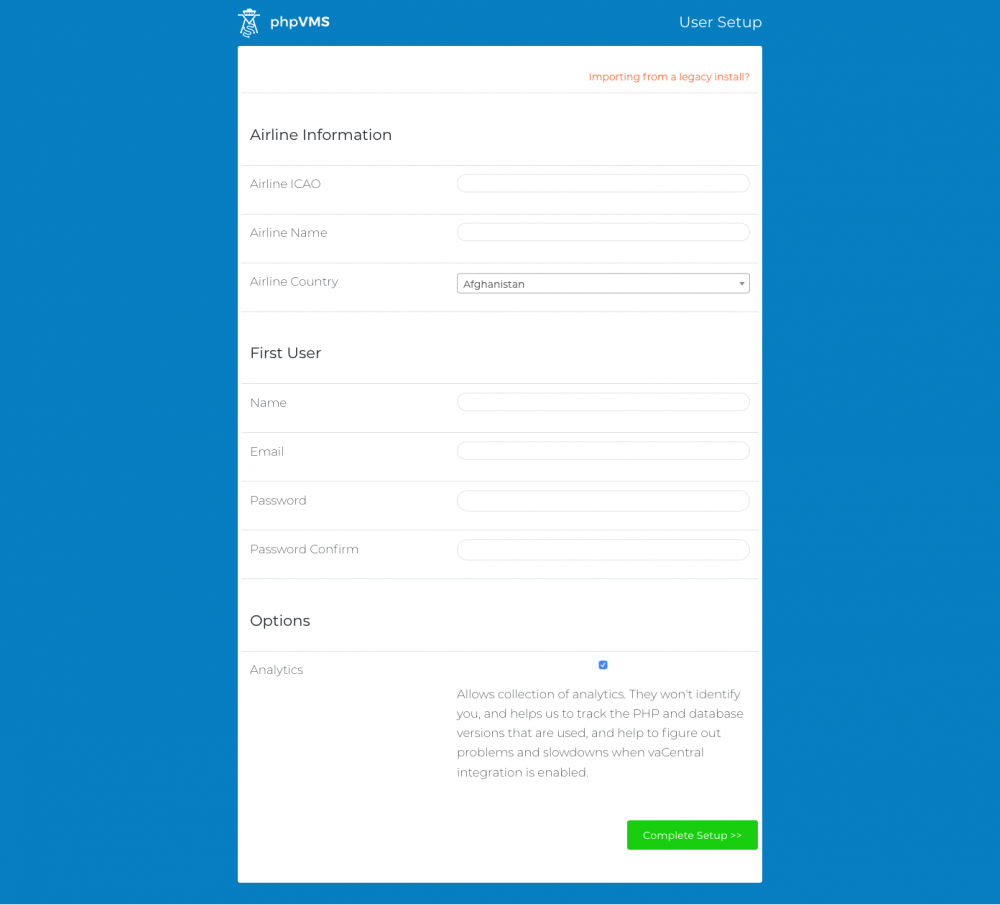
- Enter your airline's details and the first user. This user is an admin.
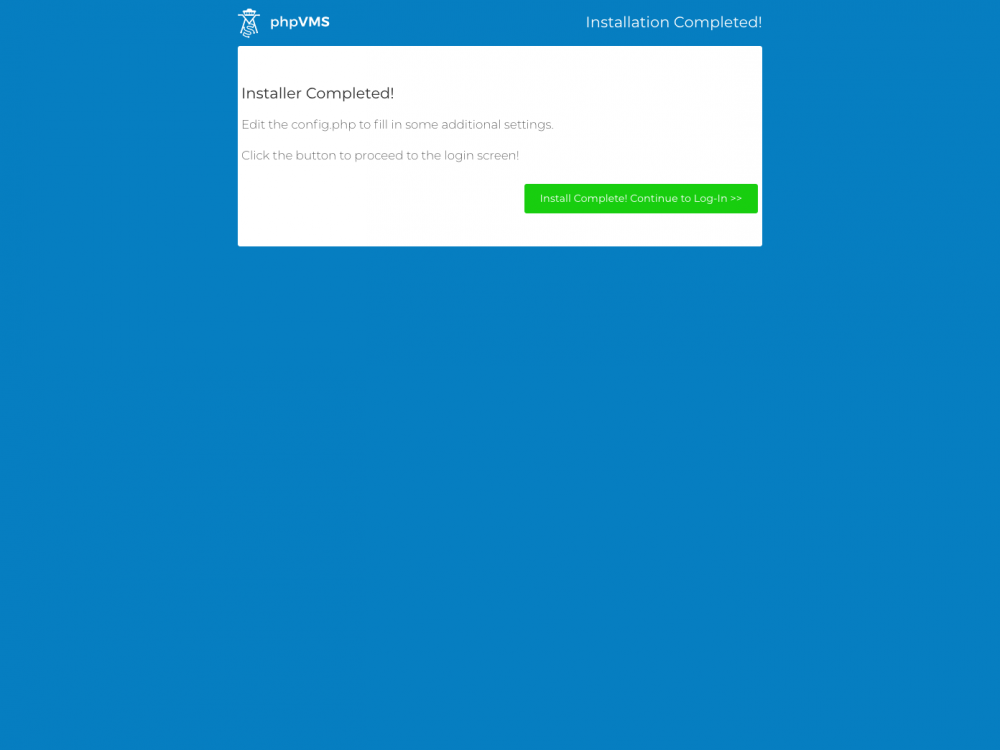
- When the installer finishes, click through to sign in. Your dashboard opens, and phpVMS is installed.
Next steps
- Set up the cron job. Emails, notifications and finances need it.
- Configure email.
If you get a "404 Not Found" page instead of the installer, see Fix installer 404 and permission errors.
Thanks for your feedback!