


Your first steps
Welcome to vmshost! This guide takes you from a new hosting account to a running phpVMS site. Each step links to a detailed article.
1. Sign in to the client area
Go to vmshost.io/login and sign in. If you don't know your password, see Signing in and resetting your password.
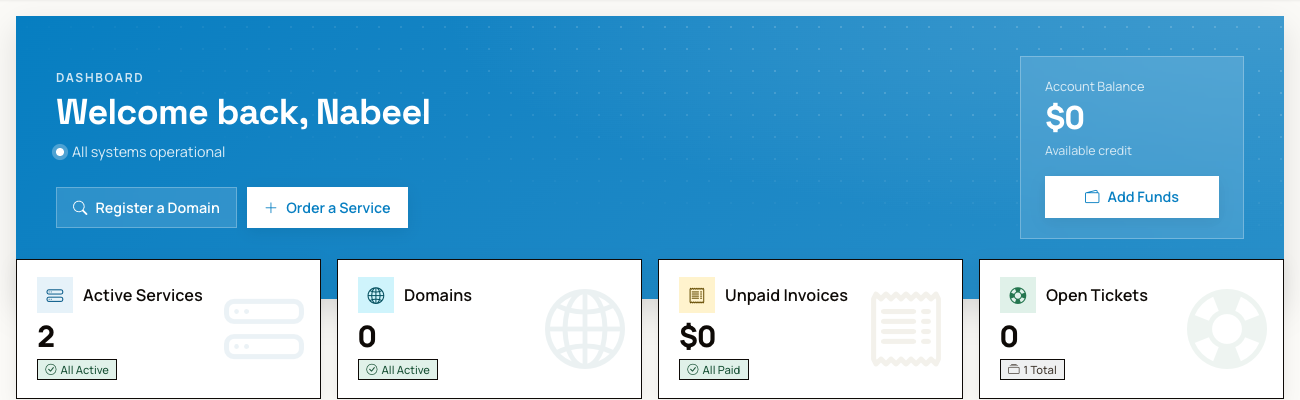
Your dashboard shows your active services, domains, unpaid invoices and open tickets:
The first time you sign in, we ask if you want to set up two-factor authentication. We recommend it: it keeps your account safe even if someone learns your password.
2. Point your domain to us
At the company where you registered your domain, set its nameservers to:
- ns1.vmshost.io
- ns2.vmshost.io
See Nameservers. Nameserver changes can take up to 24 to 48 hours to reach everyone.
3. Open cPanel
Go to Services, select your hosting plan, and click Open Control Panel. You are signed in to cPanel directly, with no second password. See Opening cPanel and webmail.
4. Install phpVMS
Use the automated installer in cPanel. See Install phpVMS with the installer.
5. Upload your files
For themes, modules and other files, see Uploading files: File Manager and FTP
Thanks for your feedback!