


Signing in and resetting your password
You can sign in to the client area in several ways. Go to vmshost.io/login and pick one:
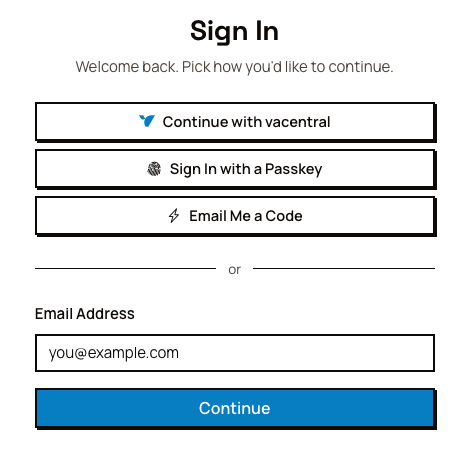
- Continue with vacentral: sign in with your vacentral account.
- Sign In with a Passkey: use your fingerprint, face or device PIN, if you added a passkey to your account.
- Email Me a Code: we email you a one-time code. You don't need a password for this.
- Email and password: type your email address, click Continue, then type your password.
Moved from our old control panel?
We moved all accounts to a new control panel. If your old password doesn't work, use Email Me a Code to sign in, or reset your password as shown below.
Reset your password
- On the sign-in page, type your email address and click Continue.
- Click Forgot Password? above the password field.
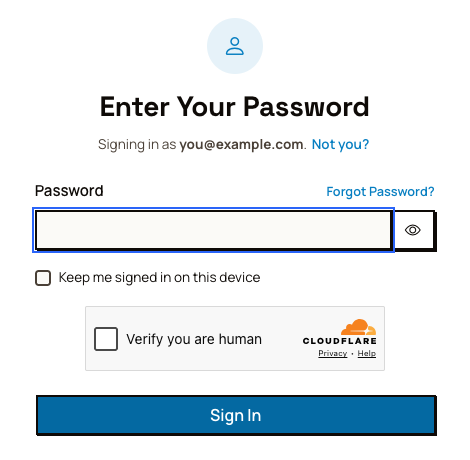
- Check your email address, complete the Verify you are human check, and click Send Reset Link.
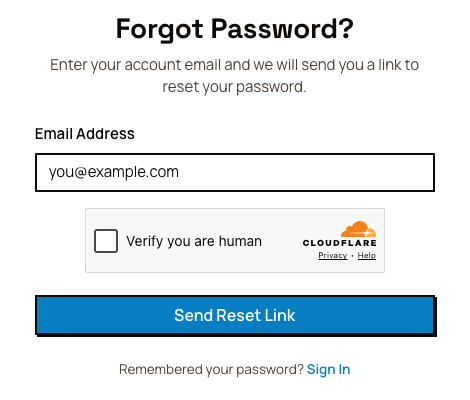
- Open the email from us and follow the link to set a new password.
If the email doesn't arrive in a few minutes, check your spam folder. If it still isn't there, contact us and tell us the email address on your account.
Keep your account safe
After you sign in, we recommend that you turn on two-factor authentication or add a passkey. You can do both in your account's security settings.
Was this helpful?
Thanks for your feedback!