


Opening cPanel and webmail
You can open cPanel and webmail from the client area with one click. You don't need a separate password.
Open cPanel
- Sign in to the client area and go to Services.
- Select your hosting plan.
- In Quick Actions, click Open Control Panel. cPanel opens in a new tab, and you are already signed in.
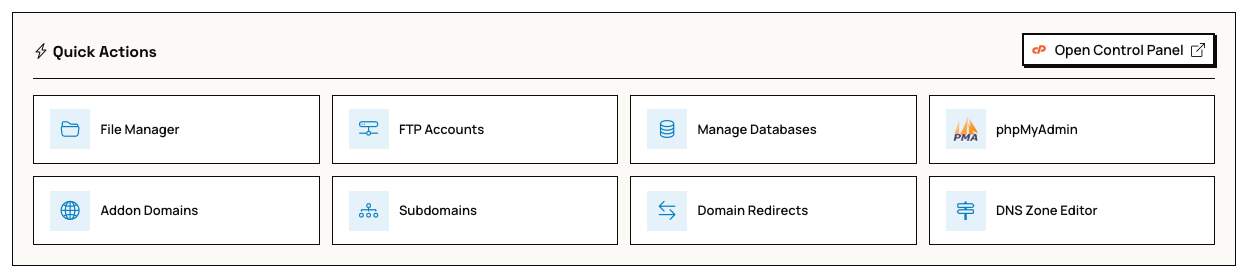
The other Quick Actions buttons open a specific cPanel page directly, such as File Manager, Manage Databases or phpMyAdmin.
More shortcuts on the Management tab
The Management tab on your hosting plan lists every shortcut, grouped by Files, Databases, Domains, Email, Software & Services, and Security. The Open Control Panel button is at the top:

Open webmail
On the Management tab, go to the Email section and click Webmail. The same section has shortcuts to create email accounts and forwarders.

To set up email for phpVMS or a mail app, see Configuring Email.
Your account details
The Overview tab of your hosting plan shows your server name, cPanel username and password, home directory, PHP version and nameservers. Use the buttons next to each value to copy it.
To sign in to cPanel without the client area, go to cpanel.vmshost.io and use the cPanel username and password shown there.
Thanks for your feedback!